How to Uninstall Windows Live Messenger
Use "Windows Live Essentials" to remove Windows Live Messenger (MSN Messenger).
by
Doug
Updated June 27, 2010
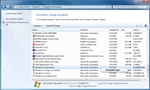
To uninstall Windows Messenger, you'll go to Control Panel -> Programs -> Programs and Features -> and find "Windows Live Essentials" to uninstall.
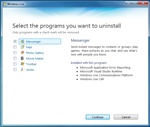
A Windows Live uninstall box will come up, and you will want to check "Messenger" and click Continue to uninstall.
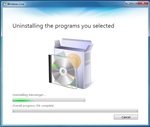
Uninstalling the programs you selected...
Windows Live Messenger can be pretty annoying if you have it installed on your computer, but don't actually use it. Messenger will by default load during start-up of Windows, and also pop-up when opening Internet Explorer or using the Bing search bar, which I find to be the most annoying thing since you can't turn it off from popping up. Since I don't use Windows Live Messenger for anything, I wanted to uninstall it so I would no longer be pestered with the program starting up (and then being forced to close it).
Here's how to uninstall Windows Live Messenger:
- Go to Control Panel -> Programs -> Programs and Features -> and find "Windows Live Essentials".
- Now select "Windows Live Essentials" and click "Uninstall / Change".
- A Windows Live uninstall box will come up, and you will want to place checkmark next to "Messenger" and then click "Continue" to start the uninstall process for Windows Live Messenger.
- It should then begin uninstalling Messenger.
- After it completes the uninstall successfully, you may need to restart your computer.
- That's it!