How to Turn Off Windows Live Messenger Popup on Startup

The Windows Live Messenger popup sign in box.
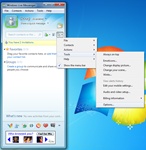
Windows Live Messenger -> Tools -> Options -> Sign In

To stop Windows Live Messenger from running at startup, uncheck the box "Automatically run Windows Live Messenger when I log on to Windows".
The Windows Live Messenger sign box will by popup by default on computer startup. This can be quite annoying especially if you don't even use the Windows Live instant messenger client. Luckily, you can easily turn off the Windows Live Messenger popup box on start up, here's how:
- In Windows Live Messenger, sign in using your Windows Live account ID and password.
- Press the Alt key to reveal menu bar, then on the menu bar, click on Tools and then click Options. Note It is also possible to reveal the menu bar by clicking on the on Show menu button icon (it is to the right of the “Search contacts or the web” box.), then click on Show the menu bar.
- Then on the menu bar, click on Tools -> then click Options ->
- then in the Options popup click on Sign In
- In the Sign In section under General, you will then want to uncheck the following box:
- Uncheck - "Automatically run Windows Live Messenger when I log on to Windows", this will dim the checkbox "Open Windows Live Messenger main window when Windows Live Messenger starts
- Click OK, to save your changes.
Now the next time you start up your computer Windows Live Messenger will not start itself automatically and pop-up.