How to Turn Off AIM Instant Messenger from Starting when Windows Starts
Stop AOL Instant Messenger (AIM) from starting up when Windows loads.
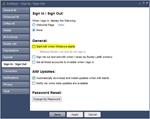
Stop AOL Instant Messenger (AIM) from starting instantly by going into Settings -> Sign In / Sign Out and unchecking the box that says "Start AIM when Windows starts"
I just installed the latest version on AOL's Instant Messenger (AIM) version 7.3. The first time after rebooting my computer, I was instantly hit with AIM starting up as well as the AIM Welcome Page popping-up much to my surprise. To say the least, this was kind of annoying, since I have no particular interest in having AIM start when Windows boots up and sign me in automatically all at the same time. So to rectify the situation, I turned off AIM from starting up when Windows starts using AIM's settings, here's how:
- Start AIM, and log into your account.
- At the top of AIM, click on 'Menu' -> and choose 'Settings'
- In the Setting pop-up, click on the 'Sign In / Sign Out' tab.
- Now under General, uncheck the box "Start AIM when Windows starts".
- If you don't want to have the AOL Welcome Page pop-up everytime you start AIM, you can also change the radio button 'Welcome Page' to 'None' under Sign In / Sign Out.
- In order for your changes to take affect, make sure you click the Apply button and then click Save.
- That's it!