How to Transfer Pictures from your Camera using Kodak EasyShare Software
Initiate the transfer process manually with Kodak EasyShare software.
by
Doug
Updated January 21, 2010
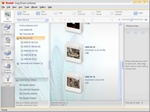
Open Kodak EasyShare software.
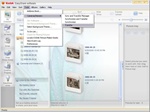
Manually select the Transfer option to upload photos from your camera to your computer.
So you've plugged in the USB cable from you digital camera into your computer, and turned on your Kodak camera in order to transfer pictures to your computer. Now if every thing works as it should, Kodak EasyShare software will be initiated and it will prompt you through the transfer process.
However, sometimes the transfer process might not get initiated for whatever reason, and you’re stuck wondering how to transfer your pictures to your computer. If you run into this problem, you can initiate the transfer process manually using Kodak’s EasyShare software and get the pictures from your camera onto your computer. Here’s how to do this using Kodak EasyShare software version version 6.0.1.
- Open Kodak EasyShare software.
- From the menu, select Tools -> Cameras/Viewers -> Transfer
- Now in the Transfer pop-up window, click on either the Transfer All or Select and Transfer button, to start the transfer process.
- That's it!
Once the transfer is complete you will be able to view your photos in the album folder you choose located under My Albums. The album folder’s default label will be named by the date of the transfer, for instance "2006-08-30 [4]", unless you changed this name before starting the transfer process. The number in brackets tells you how many pictures are in the album.