How to Capture Screenshots of an iPhone's Screen Display
Quick way to snap a screenshot of your iPhone screen.
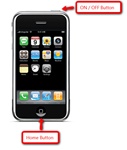
Press and hold down the 'Home' button, then press the On/Off switch button quickly to take a screen shot of your iPhone's display.
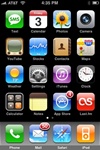
After taking a screenshot with your iPhone, simply press on the 'Camera' icon to get to your screen grab.

To get to the iphone 'Camera Roll' press the button to the left of the center Camera icon. In the 'Camera Roll' gallery is where you'll find any screen grabs that you might have taken.
So you want to capture a screenshot of what's on your iPhone? In this quick tip, you'll learn how to quickly snap a screenshot of an iPhone's screen display and have it show up in your iPhone 'Camera Roll' photo gallery. Follow these simple instructions to a take screen grab:
- Press and hold down the 'Home' button, then quickly press (and let go of) the On/Off switch button. See Figure 1.
- You should hear a camera shutter noise, and the screen will fade in from a white background.
- Great job! You just took a screen grab of your iPhone's display.
To see your screenshot, just go into the iPhone 'Camera' section, and then press on the iPhone's 'Camera Roll' Gallery icon (to the left of the center camera button icon) See Figure 2. You should now see the screenshot photo(s) that you just took.
If you'd now like to get the screenshot off your iPhone quickly, just email the photo to yourself.