How to Fix Restore failed for Server while attempting 'RestoreContainer ValidateTargetForCreation'
Help me restore my SQL Server 2008 database.
by
Doug
February 17, 2011
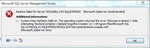
Restore failed for Server - SQL Server database error message.
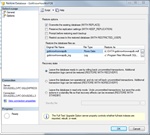
When restoring a SQL Server database with a backup file (.bak), make sure that the "Restore As" pathname and file names for (.mdf and .ldf) relate to the current database that you are restoring.
Today I ran into the a "Restore failed for Server" error message while trying to restore a SQL Server 2008 database using a database backup (.bak) file. Below I will show you how to fix this restore error, so that you can restore your SQL Server database (let's hope...!).
Here's the SQL Server error message that I receceived:
Restore failed for Server 'DELL3-PC\SQLEXPRESS'. (Microsoft.SqlServer.SmoExtended)
System.Data.SqlClient.SqlError: The operating system returned the error '5(Access is denied.)' while attempting 'RestoreContainer::ValidateTargetForCreation' on 'c:\Program Files\Microsoft SQL Server\MSSQL10.SQLEXPRESS\MSSQL\DATA\GotKnowHowWAPDB.mdf'. (Microsoft.SqlServer.Smo)
So the problem I ran into and the reason I got this error message while trying to restore my SQL Server database was that the "Restore As" directory path name was different than the actual location of where the current database was located. In essence, it was using the directory (and /or file name) location from the backup (.bak) file, which was different than that of the current database I was restoring. To understand what I mean, follow these basic restore steps:
- Open Microsoft SQL Server Management Studio
- Right click on the database you want to restore, then in the menu -> choose Tasks -> Restore -> Database...
- Now in the SQL Server "Restore Database" pop-up box, select the backup set to restore.
- Then on the left side under "Select a page", click on "Options"
- In the Restore options section, I usually will select "Overwrite the existing database (WITH REPLACE), NOTE: If you overwrite the database, just make sure that before restoring, you have a backup located else where in case something goes wrong.
- HERE's where the "Restore failed" problem arose for me:
- In the Options page, under the "Restore the database files as:" section, the "Restore As" directoy path name was different than that of the current database that I was trying to restore.
- So I simply needed to change the directory name of both the .mdf file and the log (.ldf) file for the database to the location of the current database (so they match).
- Note: You will also need to make sure that the "Restore As" file names are the same name of the database you are restoring (in the past I've run into differing file names, causing a problem restoring databases).
- Once you've made sure that the "Restore As" directory path and file names for the (.mdf & .ldf) files are the correct location to the current database you are restoring, click "OK"
- That's it!
Here's what the "Restore As" location was taken from the backup file (.mdf & .ldf):
- c:\Program Files\Microsoft SQL Server\MSSQL10.SQLEXPRESS\MSSQL\DATA\gotknowhowwapdb.mdf
- c:\Program Files\Microsoft SQL Server\MSSQL10.SQLEXPRESS\MSSQL\DATA\\gotknowhowwapdb.ldf
Here's what I changed the "Restore As" location to, in order to point to the actual location of the current database I was restoring:
- c:\Program Files\Microsoft SQL Server\MSSQL10_50.SQLEXPRESS\MSSQL\DATA\GotKnowHowWAPDB.mdf
- c:\Program Files\Microsoft SQL Server\MSSQL10_50.SQLEXPRESS\MSSQL\DATA\GotKnowHowWAPDB.ldf
So essentially, when restoring a SQL Server database using a backup file (.bak), make sure that the "Restore As" directory path and file names are the location of the current database you are restoring, and not the directory and/ or file names of where the (.bak) file database was located.
Hope that all makes sense, and helps you start restoring your SQL Server databases without any problems!